Keyboard Shortcuts and Glove Mode
Faster data entry. Bigger buttons for gloved hands.
Keyboard shortcuts
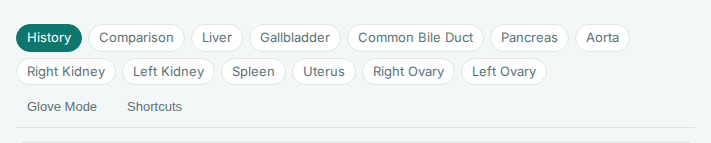
Press ? in any exam form to see every shortcut. The ones you'll use most:
| Shortcut | What it does |
|---|---|
| Alt + J / Alt + K | Next / previous field. |
| Y / N | Yes / No on a Yes/No finding. |
| 1 - 4 | Pick an option by number. |
| Enter | Confirm and advance. |
| Ctrl + S | Save and regenerate the draft. |
| Alt + R | Show or hide the Reference Images & Annotations panel. |
| ? | Show or hide the shortcut overlay. |
The form auto-saves about 30 seconds after your last change. Ctrl + S is only needed to refresh the draft right away.
By default, focus moves to the next field automatically after you pick an option or enter a value. Prefer to move on your own? Turn off Auto-advance on exam forms in Account Settings. Enter, Tab, and Alt + J still move you forward.
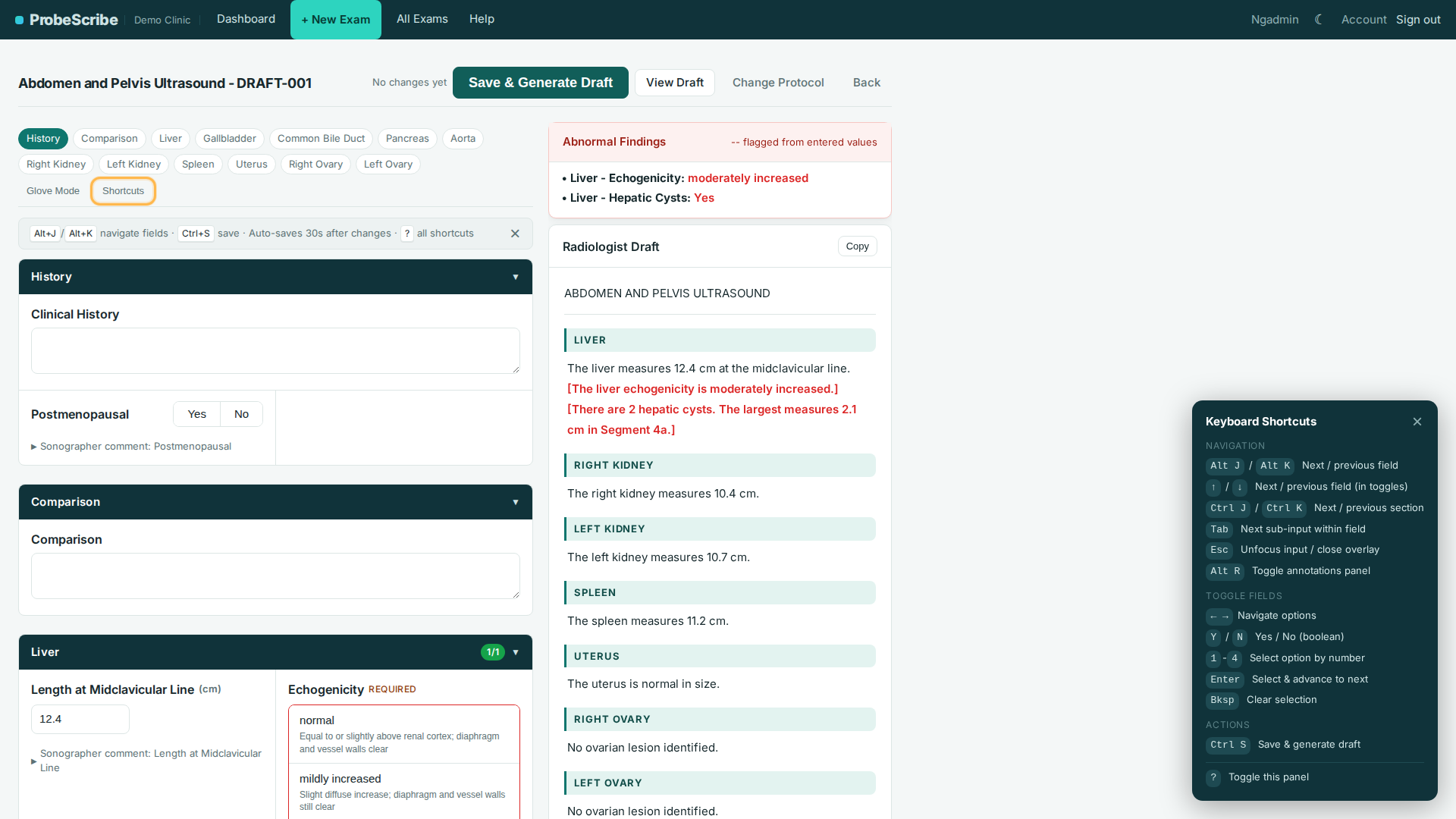
Glove Mode
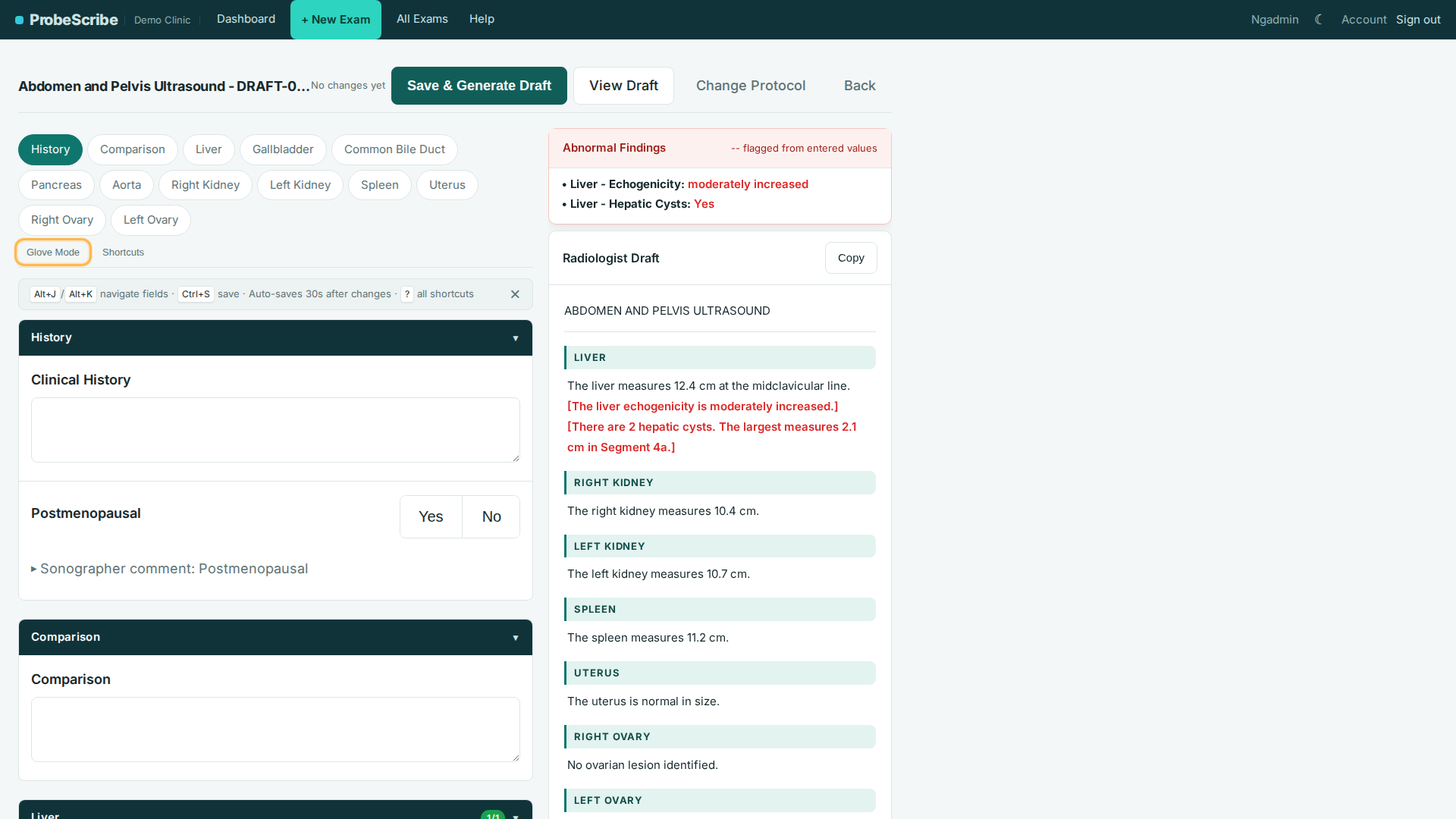
Click Glove Mode at the top of the form. Buttons, toggles, and inputs get bigger for gloved use at the machine. The setting sticks per browser. Click again to turn it off.
Intended use and limitations.
ProbeScribe is a structured-reporting aid for sonographer
worksheets and radiologist drafts. It is not a diagnostic device and is
not intended for primary image interpretation. The radiologist retains
full clinical responsibility for reviewing measurements and findings
against the source images. See the
full intended use statement.